


LastPass Password Manager
3.841.53K Reviews
App Specs
- Version
- 6.56.0.26547
- Updated On
- License
- Free
- Downloads
- 10,000,000+
- Developer
- LastPass US LP
- Categories
- Productivity
- Platform
- Android
Screenshots
 Analysis by AppCompare
I keep reaching for a password manager when signing in starts to steal little bits of time throughout the day: a password reset here, a forgotten login there, and another variation on a password I already use somewhere else. That routine is not just annoying; it makes it tempting to reuse credentials. LastPass Password Manager is designed to put those logins in one place and fill them in when needed. I find that idea most valuable when it removes small, repeated interruptions rather than when I’m thinking about security in the abstract.
Why the password routine matters
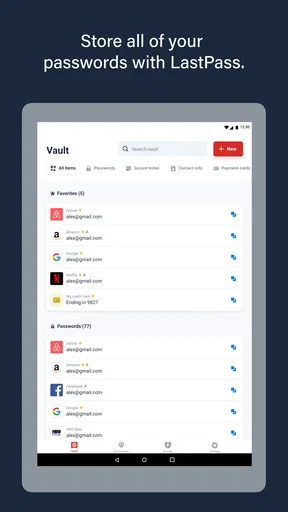
A password vault works best when it changes the habit of inventing and remembering credentials. Instead of trying to make every password memorable, I can use a unique one for each account and let the manager handle recall. The practical payoff is less time spent guessing, searching old notes, and recovering access after a failed attempt.
That convenience depends on building trust in the vault and keeping its main password safe. I would not treat a password manager as a magic shield or a reason to ignore account security. It is a tool for making safer habits easier to maintain, and it is most useful when I take a moment to understand how sign-in and recovery work before relying on it for everything.
Who is likely to get the most from it
I’d recommend trying LastPass if you sign in to many websites, regularly switch between a phone and a computer, or want to stop reusing a small set of passwords. It can also help someone who shares household responsibilities by keeping important account details organized for their own use. The key benefit is not that every task becomes effortless; it is that fewer logins require memory and manual typing.
On the other hand, if you only use a few accounts and already have a password workflow you trust, moving everything may not feel worth the effort. Someone who prefers keeping credentials entirely within a device’s built-in password tools may find that simpler. I would also avoid choosing any password manager casually: if you are uncomfortable depending on a master password and a digital vault, a different approach may suit you better.
Getting Started with LastPass
First things first, installing LastPass Password Manager is a breeze. Whether you’re on an Android or iOS device, you just head over to the Google Play Store or Apple App Store, and boom, you’re ready to go. Once you've got it on your device, setting up your account is straightforward. Just create a master password—make it a good one, because this is the key to your kingdom.
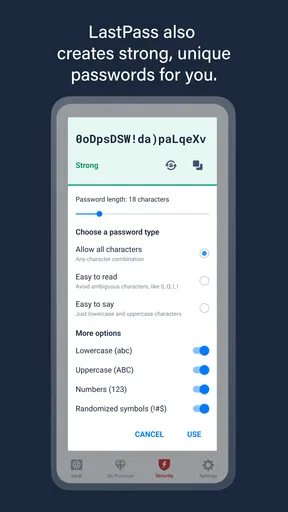
What's neat about LastPass is the way it holds your hand through the setup process. It suggests strong passwords and lets you import existing ones from browsers or other password managers. There's a sense of relief knowing you don’t have to start from scratch.
Worth Reading Before You Choose

Flipboard Shows What News Apps Must Do Beyond the Feed

Switching to Android Auto Means Rethinking Your Driving Routine

Google Calendar Makes a Crowded Week Easier to Manage

Ludo King Makes the Most of the Minutes Between Plans

Baby Panda World Brings Quick Play to Modern Phones, but Its Game Library Feels Busy

ESPN’s Live Game View Makes Following Close Games Easier
Making the first setup useful
Importing can save time, but I would not assume an imported vault is tidy or ready to use without a quick check. Before making it my everyday sign-in tool, I’d look for duplicate entries, old accounts, and passwords I recognize as reused. This turns the initial move into a useful cleanup rather than simply transferring the same mess to a new place.
I’d also start with the accounts that matter most to me, such as email, banking, and the services I use to recover other accounts. That order makes the vault useful early while giving me a chance to learn how saving and filling work. A memorable master password should be unique, and I would make sure I can reliably enter it before trusting the app as the only place I keep access details.
Features You'll Love
Now, onto the juicy stuff—features. One of my favorite things about LastPass is its seamless integration across devices. Whether I'm on my phone, tablet, or computer, my passwords are just a tap away. The app also offers a password generator, which creates complex passwords that are virtually uncrackable. No more "1234" nonsense.
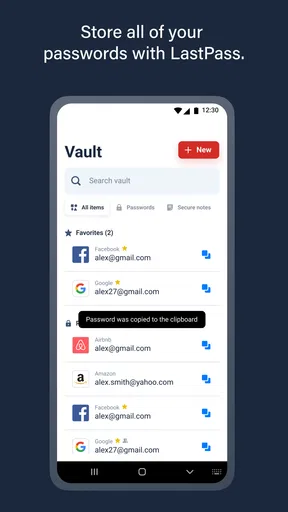
Another great feature is the secure notes section. It's perfect for storing sensitive information that doesn’t quite fit the "password" category, like Wi-Fi passwords, insurance info, or even that secret family recipe.
And let’s not forget about the dark web monitoring. This feature is like having a digital bodyguard watching your back. It alerts you if your information pops up in places it shouldn’t be.
Choosing what belongs in the vault
I find it helpful to think beyond website passwords while still being selective. A secure note can hold information I need to retrieve privately, but I would not use it as a dumping ground for every personal document. Clear names make entries easier to find in a hurry, and keeping a note focused on one purpose is more practical than packing unrelated details together.
The password generator is particularly useful at the moment an account is created or its password is changed. I’d generate a new credential then, save it to the right entry, and check that the new sign-in works before closing the page. That small sequence helps avoid the frustrating situation where a strong password exists in the vault but was never successfully applied to the account.
Everyday Use
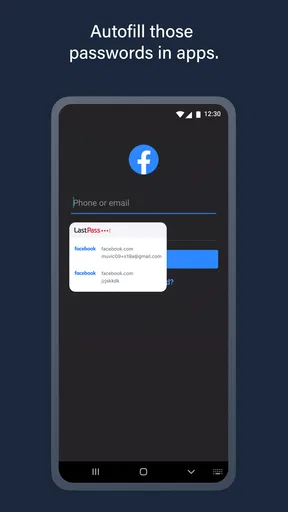
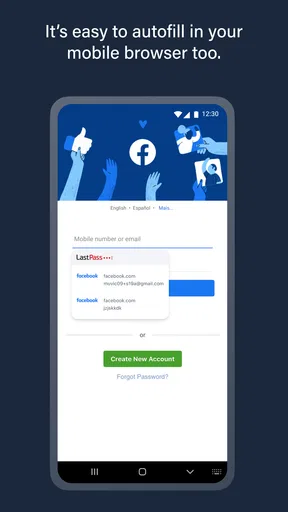
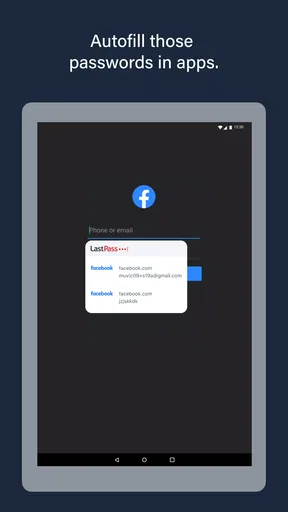
In everyday use, LastPass is a game changer. Logging into sites is a cinch; with the autofill option, you don’t need to type out long, complicated passwords. The app is also smart enough to recognize when you're signing up for a new site and offers to save the credentials automatically. It's like having a really clever assistant who's always one step ahead.
For those who are frequently on the go, the mobile app is a lifesaver. The interface is clean, intuitive, and dare I say, kinda fun to use. Navigating through the app feels natural, and I love that they keep things simple yet effective.
A realistic day with autofill
Picture arriving at a clinic and needing to sign in to its portal on your phone while checking an appointment message. Rather than switching between a guessed password and a reset screen, I can open the vault, find the saved entry, and use autofill. Later, when creating an account for a service I’ll need again, the generator can provide a distinct password and the app can offer to save it. That is the kind of small, repeated time saving that makes the habit worthwhile.
Autofill is not identical on every screen, so I would keep the vault’s search and copy options in mind rather than assuming every login form will recognize an entry perfectly. If a page has multiple sign-in fields or an unusual layout, checking the saved username and choosing the right credential can be quicker than repeatedly tapping the wrong suggestion. A brief manual check is still sensible before submitting sensitive information.
What changes the daily friction
The biggest improvement is cumulative: fewer password resets, less typing on a small keyboard, and less pressure to make a weak password memorable. It is especially noticeable when I return to an account after weeks away. Instead of relying on memory, I can search for the service and confirm I am using the credential intended for it.
There is a trade-off, though. Autofill and cross-device access are convenient only when the app is available and I can unlock the vault. I’d keep my recovery details and master-password plan in order, and I would not wait until an urgent login to learn the basic steps. Good preparation is part of making the convenience reliable.
How it compares with familiar alternatives
Compared with saving passwords in a browser, a dedicated manager can feel more deliberate: the vault is a place to organize logins and secure notes rather than a feature tied only to browsing. Browser password saving may be enough if nearly all of your sign-ins happen in one browser and you want the fewest moving parts. I’d choose based on where I actually log in, not on the assumption that one approach is universally better.
Built-in password tools on a phone can be the simpler choice for someone who stays within one device ecosystem and wants fewer separate apps. LastPass makes more sense to me when I value a dedicated vault and want to work across devices, but convenience depends on the plan and setup that fit my use. Before committing, I would check which functions are available on the devices I use and whether any paid option is necessary for my routine.
Security and Peace of Mind
Security is obviously a big deal when it comes to password managers, and LastPass doesn’t disappoint. With AES-256 bit encryption, your data is locked down tight. Plus, they offer multi-factor authentication for that extra layer of security. It's like having a virtual lock and key, plus a security guard.
In terms of peace of mind, knowing that LastPass has a zero-knowledge policy means they can’t access your data even if they wanted to. Only you have the key to your vault, which is pretty reassuring in this digital age.
Keeping the vault dependable
For me, the useful security habit is to treat multi-factor authentication as part of the account setup rather than an optional extra to postpone. It adds another step when I sign in, so there is a small convenience cost, but that friction can be worthwhile for a vault containing many credentials. I’d also keep the app and my account details in a state I can access, rather than assuming I will remember every setting months later.
No password manager eliminates every risk. A strong master password, careful handling of sign-in prompts, and attention to account alerts still matter. Dark web monitoring can be a helpful warning signal, but I would treat an alert as a reason to review the affected account and change its password, not as proof that the vault itself has been compromised or as a substitute for acting.
Price, fit, and the final call
LastPass is a free productivity app from LastPass US LP, with in-app purchases ranging from $0.99 to $35.99 per item. It has a 3.6 average from around 235,000 ratings, and it has been installed over 10 million times. Those figures suggest that plenty of people have tried it, but I would weigh my own needs more heavily: check the current plan details in the app before deciding whether the free option covers the way I use multiple devices.
The app is rated for Everyone, and version 6.46.0.21457 requires Android 12 or later. I’d keep that requirement in mind before planning a switch, especially if an older Android phone is part of my routine. The right password manager is the one that works on the devices I actually use and that I will keep using consistently.
Wrapping It Up
All in all, LastPass Password Manager is a must-have tool for anyone looking to streamline their digital life. It's more than just a password manager; it's a comprehensive digital security companion. Sure, there might be a bit of a learning curve if you're new to password managers, but trust me, it's worth it.
If you're tired of the password chaos and want to keep your online accounts safe and sound, give LastPass a shot. It's like having a digital Swiss Army knife in your pocket, ready to tackle whatever the online world throws at you.
Pros
- Easy password generation and storage.
- Cross-platform synchronization is seamless.
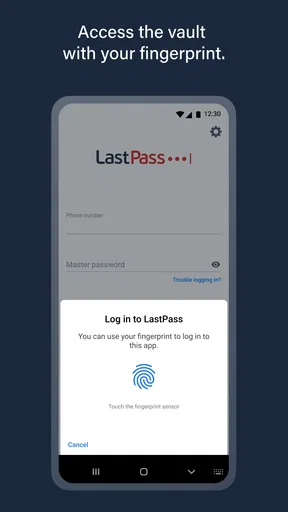
- Offers biometric login options.
- Secure notes feature for sensitive info.
- Browser extension enhances functionality.
Cons
- Free version lacks advanced features.
- Occasional sync issues reported by users.
- Interface can be overwhelming for newbies.
- Premium price may be high for some.
- Limited customer support response times.
FAQs for LastPass Password Manager
What is LastPass Password Manager, and how does it work?
LastPass Password Manager is a secure application designed to store and manage your passwords in one place. It encrypts your data using AES-256 bit encryption, ensuring that only you can access your stored information. By using a single master password, you can automatically fill in login details on websites and apps, enhancing convenience and security.
Is LastPass Password Manager secure enough for sensitive information?
Yes, LastPass uses advanced security measures, including AES-256 bit encryption, PBKDF2 SHA-256, and salted hashes to protect your data. Only you know your master password, which means even LastPass cannot access your stored information. Additionally, features like multi-factor authentication (MFA) add an extra layer of security.
Can LastPass Password Manager be used on multiple devices?
Absolutely. LastPass is available on Android, iOS, Windows, and MacOS, allowing you to sync your passwords and secure notes across all your devices. This ensures that you have access to your credentials anytime, anywhere, as long as you're signed into your LastPass account.
Does LastPass Password Manager offer a free version, and what are its limitations?
Yes, LastPass offers a free version that includes password storage and access on unlimited devices of the same type (either mobile or desktop). However, the free version does not include features such as priority tech support or dark web monitoring, which are available in the premium version.
How does LastPass Password Manager handle password sharing?
LastPass allows you to securely share passwords with trusted individuals. You can choose to share passwords either with or without viewing rights. This feature is particularly useful for sharing access to shared accounts, such as streaming services or utility accounts, while maintaining security and control over your information.


